
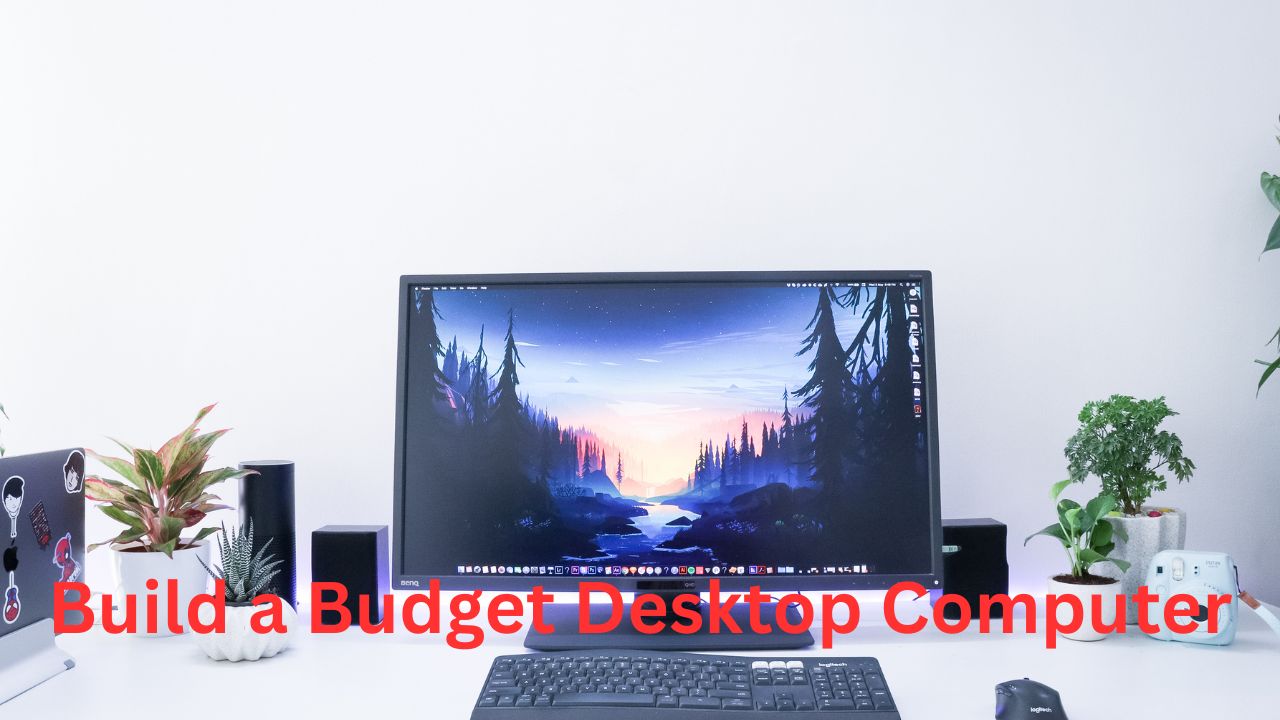
Building a budget desktop computer can be an excellent way to get reliable performance without spending money on unnecessary features. Instead of buying a prebuilt PC with fixed specifications, you can select individual components based on your needs and budget. A carefully planned budget PC can handle everyday tasks, office work, studying, browsing, content creation, and even gaming. The key is to balance performance, compatibility, upgrade potential, and cost. Understanding what each computer component does makes the building process easier and helps you avoid expensive mistakes.
Set a Realistic PC Building Budget
Before purchasing components, decide exactly how much you can spend on the complete computer. Your budget should include the processor, motherboard, RAM, storage, power supply, case, and graphics card if necessary. Remember to consider additional expenses such as case fans, operating system costs, and peripherals. Avoid spending most of your budget on one premium component while using extremely low-quality parts elsewhere. A balanced configuration generally provides better overall performance and reliability. Setting a maximum budget also makes it easier to compare components and identify where you can save money.
Choose the Right Processor
The CPU is one of the most important components in a desktop computer because it handles general processing tasks. For a budget build, choose a processor that offers good performance for your intended workload rather than automatically selecting the most expensive model. Processors with integrated graphics can be especially useful for affordable PCs because they may eliminate the need for a separate graphics card. Check the processor’s performance, power requirements, socket type, and included cooler before purchasing. A capable budget CPU can provide smooth performance for web browsing, productivity applications, education, and many everyday computing tasks.
Select a Compatible Motherboard
The motherboard connects the processor, memory, storage, and other hardware components. When choosing a budget motherboard, compatibility should be your first priority. Make sure its CPU socket and chipset support your selected processor. Check the supported RAM type and speed, storage interfaces, expansion slots, USB ports, and networking features. A basic motherboard can be sufficient for an affordable desktop, but spending slightly more on useful connectivity and future upgrade support can be worthwhile. Always verify compatibility using the manufacturer’s specifications before ordering components.
Pick the Appropriate RAM
RAM allows your computer to temporarily store data that active programs need. Insufficient memory can cause slowdowns when multiple applications are running simultaneously. For a modern budget desktop, choosing a suitable amount of RAM is important for smooth everyday performance. Consider buying a matched memory kit when possible so the system can take advantage of dual-channel operation. Also confirm that the memory generation is supported by your motherboard. If your budget is limited, prioritize enough RAM for your normal workload instead of purchasing extremely high-speed memory that provides little practical benefit for your use case.
Choose Affordable and Fast Storage
An SSD is one of the best upgrades for a responsive budget computer. Compared with traditional hard drives, solid-state drives generally provide faster boot times, quicker application launches, and a more responsive desktop experience. A budget PC can use an affordable NVMe SSD if the motherboard supports the appropriate interface. Choose storage capacity based on your files, applications, and games. If you need substantial storage for media or backups, combining an SSD with a larger hard drive can be a cost-effective solution. Always keep important files backed up separately.
Decide Whether You Need a Graphics Card
Not every budget computer needs a dedicated graphics card. If your processor includes integrated graphics, you may be able to use the computer without purchasing a GPU. This approach can significantly reduce the initial cost for office work, studying, web browsing, streaming, and other basic tasks. However, gaming, 3D rendering, advanced video editing, and other graphics-intensive workloads may require a dedicated graphics card. If you plan to add one later, choose a power supply and case that can accommodate your future GPU.
Select a Reliable Power Supply
The power supply unit, or PSU, provides electricity to every major component. It should never be treated as an area where extreme cost-cutting is appropriate. Choose a reputable PSU with adequate wattage, suitable connectors, and appropriate efficiency certification for your configuration. Avoid unknown brands offering unusually high wattage at suspiciously low prices. A reliable power supply protects your investment and provides room for reasonable future upgrades. Calculate the approximate power requirements of your CPU and graphics card before selecting the PSU, while leaving some additional capacity for system expansion.
Choose a Practical PC Case
A computer case protects your components and influences cooling, installation, noise, and future upgrades. Budget cases can provide excellent value when they offer sufficient airflow and practical internal layouts. Check whether the case supports your motherboard’s form factor, CPU cooler height, graphics card length, and power supply size. Front ventilation and multiple fan mounting points can improve airflow. You do not need an expensive case filled with unnecessary RGB lighting to build a good PC. Focus on build quality, airflow, cable management, and component compatibility.
Consider Cooling Requirements
Cooling keeps computer components operating within safe temperatures. Many budget processors come with a basic CPU cooler that may be sufficient for standard workloads. If your processor does not include a cooler, purchase a compatible model before assembling the computer. Additional case fans may also improve airflow, especially in systems with a dedicated graphics card. Install fans so that cool air enters the case and warm air exits efficiently. Good airflow can help maintain consistent performance and reduce thermal stress without requiring an expensive cooling system.
Check Component Compatibility
Compatibility checks are essential before buying any computer parts. Confirm that the processor works with the motherboard, the RAM matches the motherboard’s supported memory type, and the motherboard fits inside the selected case. Make sure the power supply has the required connectors and enough capacity. If installing a dedicated GPU, verify its physical dimensions and power requirements. Also check whether the CPU cooler fits the motherboard and case. Spending a few minutes reviewing specifications can prevent frustrating installation problems and unnecessary returns.
Plan Your PC Build for Future Upgrades
A budget computer does not have to remain basic forever. When selecting components, consider how you might upgrade the system later. A motherboard with additional RAM slots can make memory expansion easier. A case with extra storage bays can provide more storage flexibility, while a capable PSU can support a future graphics card. You can also begin with integrated graphics and add a dedicated GPU when your budget allows. Planning for upgrades helps extend the useful life of your desktop and prevents the need to replace the entire system.
Prepare Your Workspace and Tools
Before assembling your desktop, prepare a clean, well-lit workspace. You generally need a suitable Phillips screwdriver and a small container for keeping screws organized. Keep component manuals nearby because they contain important installation diagrams and connector information. Avoid building the computer on a surface that can easily generate static electricity. Handle components carefully by their edges and avoid touching exposed contacts or circuitry unnecessarily. Taking your time during preparation reduces mistakes and makes the assembly process more comfortable for beginners.
Install the CPU and CPU Cooler
Begin motherboard assembly by installing the processor into its socket according to the manufacturer’s instructions. Never force the CPU into position because the socket and processor are designed to align in a specific orientation. After securing the processor, install the appropriate cooler. If thermal paste is not already applied, use the recommended amount according to the cooler manufacturer’s instructions. Connect the CPU fan cable to the correct motherboard header. Proper installation is important because an improperly mounted cooler can lead to excessive temperatures and unstable performance.
Install RAM and Storage
After installing the processor and cooler, install the RAM modules into the recommended motherboard slots. The motherboard manual usually identifies which slots should be used for a two-module configuration. Apply firm, even pressure until the memory modules lock into place. Next, install your SSD into the appropriate storage slot and secure it properly. If using a traditional hard drive, mount it in the designated drive bay and connect the required cables. Avoid forcing connectors, and confirm that every component is securely mounted before continuing.
Install the Motherboard Inside the Case
Prepare the case by installing the appropriate motherboard standoffs and checking that their positions match the motherboard. Carefully place the motherboard inside the case and secure it using the correct screws. Do not overtighten the screws because excessive force can damage components. Connect the necessary front-panel cables, USB connections, audio cable, storage cables, and power connections according to the motherboard manual. Cable routing may look complicated initially, but organizing cables behind the motherboard tray can improve airflow and make future maintenance easier.
Install the Graphics Card if Required
If your system uses a dedicated GPU, install it into the appropriate PCIe expansion slot on the motherboard. Remove the corresponding case expansion-slot covers and carefully insert the graphics card until it is properly seated. Secure the card to the case with the appropriate screws. If the graphics card requires additional power, connect the correct PSU cable. Check that the card is firmly supported and that its fans have sufficient clearance. Avoid using damaged or incompatible power connectors.
Connect the Power Supply
Install the PSU in its designated case position and connect the required cables. The motherboard normally needs a main motherboard power connection and a separate CPU power connection. A dedicated graphics card may require additional PCIe power cables. Storage devices can also require power connections depending on their type. Keep unused modular PSU cables disconnected when possible to reduce clutter. Before turning on the system, carefully check that all essential power connections are secure and correctly positioned.
Perform the First Boot
After assembly, connect the monitor, keyboard, and power cable, then turn on the computer. If everything is installed correctly, the system should display the motherboard or firmware screen. Enter the BIOS or UEFI interface and check whether the processor, RAM, and storage drive are detected. Verify that the CPU temperature appears reasonable and that the system recognizes the installed memory. If the computer does not start, turn it off and check power connections, RAM seating, display connections, and motherboard indicators before troubleshooting further.
Install the Operating System
Once the hardware successfully passes the initial boot, install your preferred operating system from compatible installation media. During installation, select the correct storage drive and follow the setup instructions. After reaching the desktop, install essential motherboard, chipset, networking, audio, and graphics drivers as needed. Run available system updates and restart the computer when requested. A fresh operating system installation can provide a clean foundation for applications, security tools, games, and productivity software.
Test Your New Budget PC
Testing your computer after assembly helps identify problems before they become serious. Check temperatures during normal use and observe whether the system remains stable under heavier workloads. Test USB ports, audio, networking, storage, display output, and other important features. You can use reputable benchmarking or diagnostic applications to evaluate performance, but avoid unnecessary stress testing if you are unfamiliar with the process. Watch for unusual noises, crashes, overheating, or unexpected shutdowns. Early testing makes it easier to identify incorrectly installed or defective components.
Common Budget PC Building Mistakes
Several mistakes can increase the cost of a budget desktop. Buying incompatible components, choosing an unreliable power supply, overlooking airflow, or spending too much money on cosmetic features can reduce the value of your build. Another common mistake is purchasing high-end components that provide little benefit for the intended workload. Beginners may also forget essential cables, cooling requirements, or operating-system considerations. Researching each component and checking compatibility before purchase can help you avoid these problems and create a more balanced computer.
How to Save Money When Building a PC
There are several ways to reduce the cost of a custom desktop without sacrificing essential performance. Compare prices across reputable retailers and consider previous-generation components when they offer strong value. Reusing compatible peripherals, monitors, storage drives, or cases can also reduce expenses. Integrated graphics can eliminate the need for a dedicated GPU when gaming is not a priority. However, avoid choosing unreliable components simply because they are cheaper. The best budget strategy is to spend money where performance and reliability matter most.
Final Thoughts on Building a Budget Desktop Computer
Learning how to build a budget desktop computer gives you greater control over performance, cost, and future upgrades. Start by defining your workload and budget, then select compatible components with a focus on balance and reliability. Prioritize the processor, sufficient RAM, fast storage, dependable power supply, and effective airflow. Take your time during assembly and carefully follow manufacturer instructions. With proper planning, even beginners can create an affordable custom PC that provides dependable everyday performance and a strong foundation for future upgrades.





Leave a Reply